Share a page, or move your whole setup
Your snippet library is built to move with you. Hand a single page to a coworker, or carry your entire setup to a new PC — both take under a minute.
Export and import a single page
Built a great page of go-to lines? Send just that one page to a friend or coworker without handing over your whole setup.
- 1
Export the page
Right-click the page's tab at the top and choose Export. That copies the whole page — every card, its name, color, and text — as a block of text/JSON you can send to anyone (paste it into a message, note, or file).
- 2
They import it
On the other end, they open the Import Page tool, paste in that text/JSON, and it adds just that one page to their library. Nothing else in their setup is touched — no cards overwritten, no colors changed.
Transfer a whole setup to another PC
Upgrading your machine, or setting up C.H.A.T. somewhere new? Bring every page, card, and setting with you in two steps.
- 1
Grab the config file
Your entire setup — every page, card, model, and setting — lives in a config file stored locally right next to the app's .exe. Moving to a new PC or handing off a full setup is just a matter of copying that one file.
- 2
Import with the Transfer tool
On the target machine, open the Transfer tool and point it at that config file. It imports everything and automatically upgrades an older config to the current format — and it backs up the existing local config first, so nothing already on that PC is lost.
Since your data is stored locally next to the app and never uploaded anywhere, that config file is the single source of truth for your whole setup.
The library that makes it worth sharing
Everything you can move around is organized, color-coded, and built to keep your most-used lines a click away.
Pages & cards
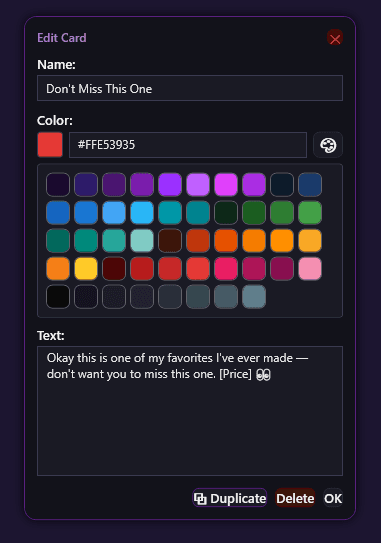
Snippets live on pages (tabs across the top), each holding any number of cards. Each card has a name, a custom color from a 48-swatch palette, and a body of text — including rich formatting and emoji if that's how you originally copied it.
- • Drag cards to reorder within a page
- • Drag a card onto another tab to move it there
- • Right-click to edit, recolor, or duplicate a card
- • Mark pages as favorites and collapse the rest down to one row
Build a whole page in one pass, not one card at a time
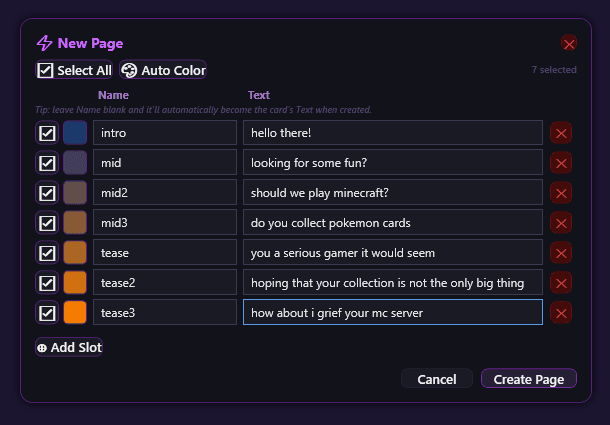
Loading in a list of 10, 20, or more scripts by clicking +Card over and over, opening each one to fill it in, is exactly the kind of busywork C.H.A.T. is supposed to save you from. Quick Page Maker fixes it: give it a page name and roughly how many cards you want, and it hands you that many ready-to-fill slots at once — each with a Name field, a Text field, and a color swatch, all on screen together instead of one editor window at a time.
- • Find it as a +Quick button right next to the regular page/card buttons, or under "Quick Page Maker" in Settings
- • The starting count is just a starting point — add more slots on the fly, or remove one you don't need. Nothing's locked in once they're generated
- • Name is optional — most scripts don't need a separate label. Leave it blank and the card's name automatically becomes its own text
- • Select a group of slots and hit Auto Color to bulk-color the whole batch in one action — one flat color, or two colors blended into an automatic gradient that steps evenly across the group in order
What used to be a tedious one-by-one chore turns into something you can do in a couple of minutes — fully color-coded from the start.
Pop it out, drag it across
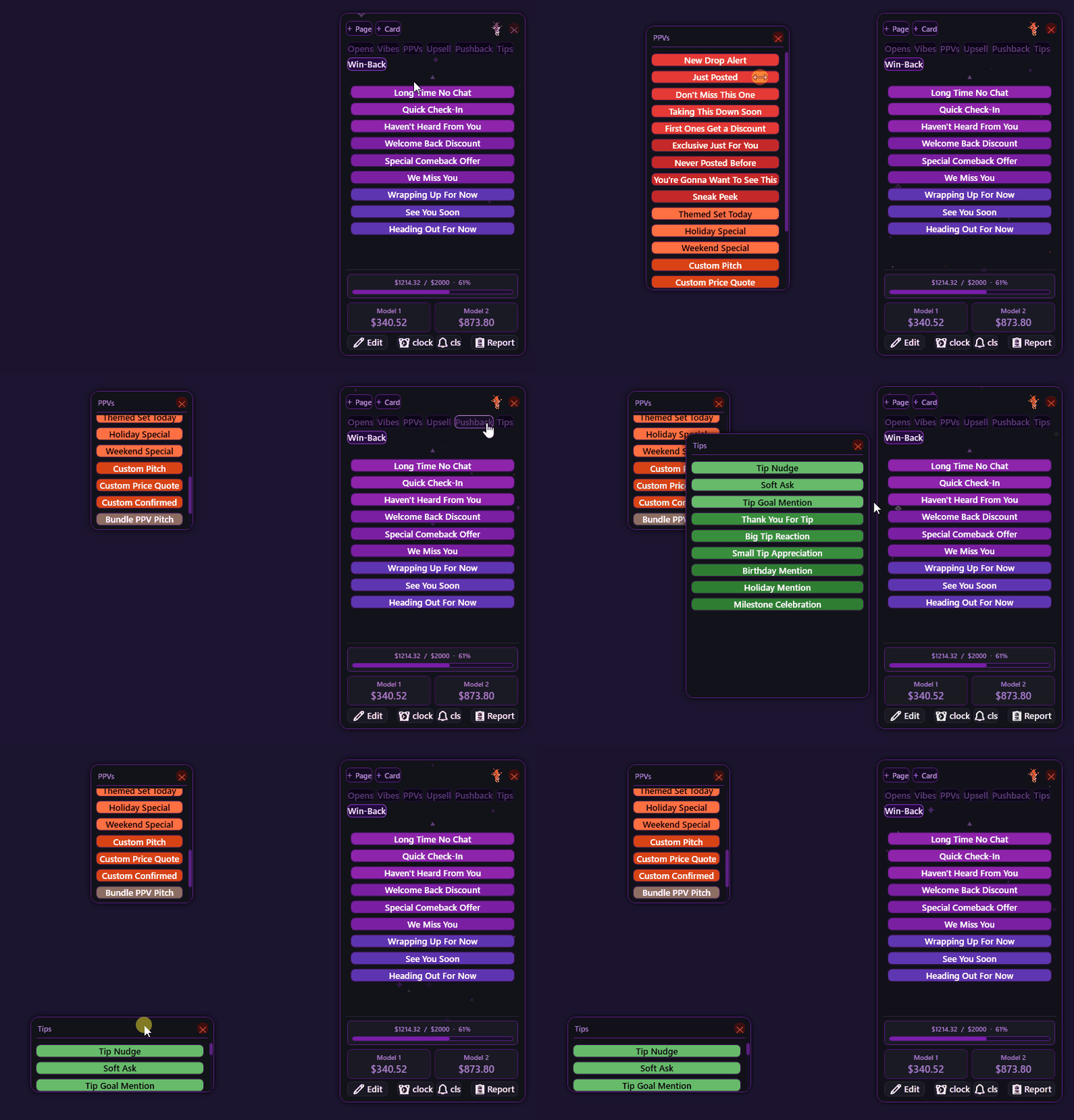
Pop any page out into its own small floating, resizable, always-on-top window — perfect for keeping your most-used page visible at all times. Drag cards between separate app windows to copy them across without retyping a thing.